Storage Systems
Overview
Today we will talk about storage of data. This refers to non-volatile data storage (which means the data persists without power) as opposed to a computer system's main memory (RAM). We'll look at some different types of storage technology and their trade-offs, and some tools for improving efficiency and reliability of data, and talk about backups.
With storage, there are a few factors that are important to consider, which will be given different weight for different applications:
- Performance
- Scalability
- Reliability
- Security
- Cost
Storage Technology
There are multiple types of storage technology that have been used over the years:
Magnetic Tape
Here a tape stores bits by setting the magnetic polarity of the cells on a reel of magnetic tape. This storage was widely used in the early days of computing, but has been superseded for live systems because it is not fast.
It is still used for long-term backup because it is inexpensive.
Magnetic Disk
This uses similar technology to magnetic tape, but instead the magnetic regions stored on a series of circular disks called platters. The platters rotate around under a read/write head which can move from the center to the rim:
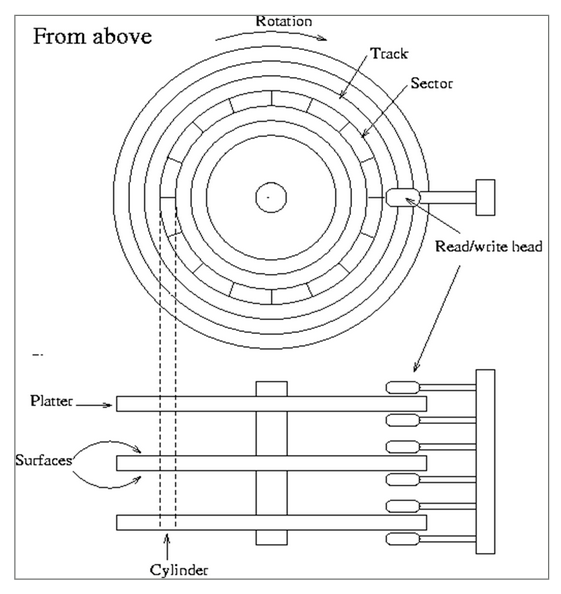
There are multiple disk tracks, each of which stores multiple sectors. To access the data, we need to wait for the sector we want to rotate under the read/write head. Because of the moving parts, these are relatively slow by modern standards, but are still widely used.
They are available in different storage capacities and also different speeds, determined by the RPM of the spinning platters. Unfortunately there is an inverse relationship between the rotation speed and how tightly data can be packed.
Optical Disk
These include CDs, DVDs, and Blu-Ray disks. They set information by etching tiny symbols into the disk surface which are then read by an light source. Many of these are only writeable once and then become read-only, but re-writable optical disks do exist.
Solid State
These disks are called solid state because (unlike the above technologies) they have no moving parts. They store data by charging and dis-charging transistors that are trapped inside of insulation. Because they have no moving parts, they are significantly faster, on the order of 10 times faster.
Unfortunately the way they are written degrades the material over time. SSDs therefore spread out the sections that are written evenly to avoid wearing out some areas before others. They do have a shorter lifetime than magnetic HDDs.
There are also multiple types of storage interface protocols. These define the way that the storage device is connected to the rest of the computer through the motherboard. Some common ones are:
SATA
The Serial Advanced Technology Attachment. This is the most common interface for regular consumer drives, and connects drives using cables.
NVMe
Non-Volatile Memory Express. This uses PCI express slots in the motherboard, which provides significantly faster speeds.
SCSI
The Small Computer System Interface. This is commonly used in enterprise systems due to increased speed and higher reliability.
SAS
Serial Attached SCSI. This is an extension to SCSI with higher speeds, support for SATA drives and less chance of contention with multiple accesses at once.
RAID
RAID (Redundant Array of Inexpensive/Independent Disks) refers to using multiple disk drives together as one logical drive. It appears to the host machine as one drive, but actually stores data across multiple. RAID provides two functions:
- Reduce the time needed to read/write data
- Provide increased data integrity
There are several different RAID configurations based on the number of disks and the desired balance between performance and reliability. There are three techniques employed by the different configurations:
Striping
Data is written across the drives evenly to increase performance. For example, if we have 4 drives and want to write a 12 MB file, we would break the file into chunks and write 3 MB chunks to each of our drives. The goal here is to improve performance, since the data transfers happen in parallel. It does not improve reliability, and in fact makes it worse because now if any of the drives involved has a failure we could lose the file.
Mirroring
Data is written in its entirety to multiple drives. If we have a 12 MB file, we could write the entire file to multiple disks at once. This does not improve performance, but does improve reliability. If one drive fails, the data should be safe on the other(s).
Parity
When combined with striping, we have an extra drive which stores the XOR parity of the other drives. For instance if there are three drives storing striped data, then we have a fourth drive which stores bytes of the other three drives XOR'd together. If any of the four drives go down, we can re-compute the lost data.
RAID Configurations
There are different RAID configurations which are geared towards different trade-offs of performance vs. reliability and require different numbers of drives. Some of the most widely used are:
RAID 0
With RAID 0, we only do striping, across at least two disks. The following is a diagram of a RAID 0 setup with two disks:
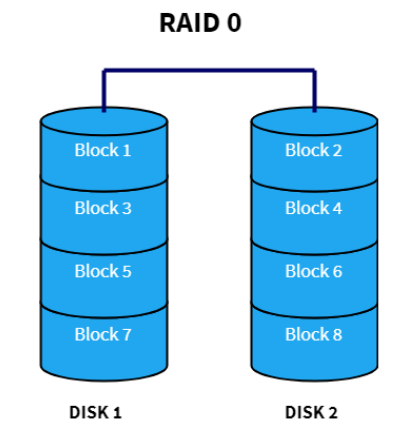
Blocks of data are stored to only one drive and spread evenly across the drives we have. It provides increased speed, but doesn't provide reliability. The more drives we add, the faster (and less reliable) the setup becomes. Rarely used in practice because of the risk of losing data.
RAID 1
Here we utilize mirroring, but not striping. The following is a depiction of RAID 1 with two disks:
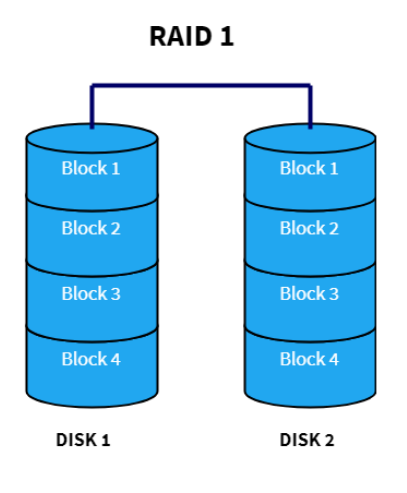
This provides increased reliability, but no performance improvement. The more disks we employ, the more reliable the data will be. If performance is not a major concern, this is an effective way to improve data reliability.
RAID 4
With RAID 4 we use parity blocks to provide reliability without completely duplicating data. The data blocks are striped across the disks, with one extra disk being reserved for parity:
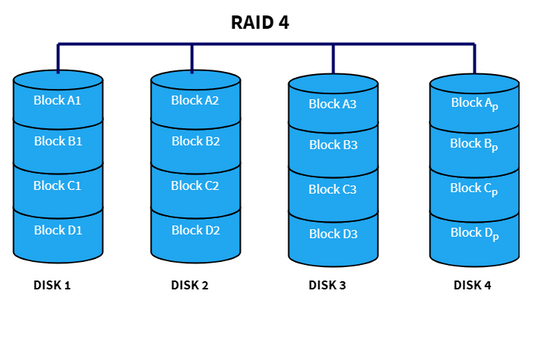
If any of the drives fail, we can re-compute its data from the parity drive. Rarely used in practice because storing all the parity bytes in one drive is not efficient.
RAID 5
This is very similar to RAID 4, except we distribute the parity blocks across all drives in the system:
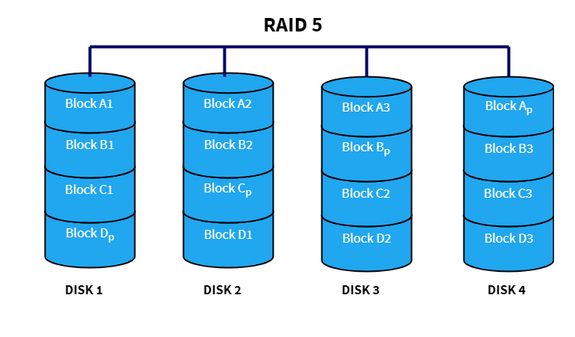
This is more efficient because we don't store all the parity together. Every write to any block involves updating the parity information, so now that is spread across the drives.
RAID 6
RAID 6 is similar to RAID 5, except that we have two parity blocks:
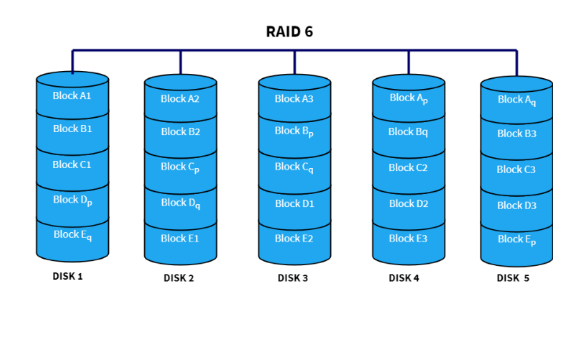
This allows any two drives to fail without losing data.
RAID 1+0
We can also nest RAID configurations. This involves setting up multiple drives using one configuration, and then treating them as single drives as part of another RAID configuration. A common setup for this is RAID 1+0, or RAID 10, which looks like this:
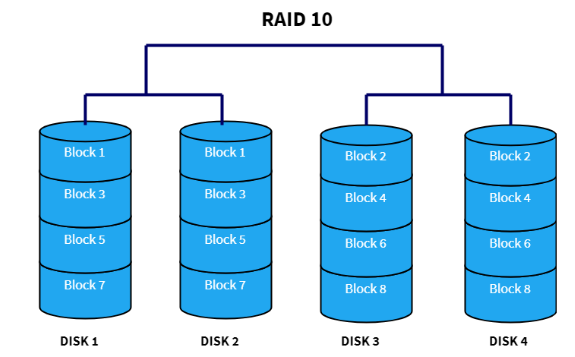
Here, we have 4 drives which are in 2 sets of 2. Each set is setup as a RAID 1 logical disk, duplicating data. Then, we combine these two sets in a RAID 1 setup, and stripe data across them. This aims to give us both duplication and also performance.
There are other RAID configurations (as you can infer from the missing numbers), but these are the most widely used in practice.
On Linux, RAID can be setup using the mdadm tool, but doing so is a bit beyond
the scope of this class.
NAS
A Network-Attached Storage device is a server on a network whose primary function is to serve files. It's essentially a computer with a set of drives attached to it, usually using some RAID configuration. The operating system, which is often a Linux or other UNIX variant, runs off a separate boot drive which is not attached to the RAID drive configuration.
They generally support a number of network authentication/transfer protocols depending on the environment:
- NFS
- SMB
- SFTP
They provide an option for storage that is more "plug and play" then configuring RAID drives yourself. They are also typically smaller and quieter than having a full server with attached drives.
Cloud Storage
Just like hosting computational resources have been moved to the cloud over recent years, we also have seen organizations outsource data storage to cloud services. These take care of things like redundancy, performance, etc. but of course come with recurring costs, for both the amount being stored and how much it is accessed.
These services typically offer different tiers for types of data. For example, "live" data being accessed regularly by an application will generally need to be accessed much more quickly than data treated as an off-site backup.
Google has prices listed on their cloud storage page.
Backups
All important data should be backed up regularly. The time frame of how often backups should be conducted varies, but at least once a week is a good rule of thumb. Many organizations backup data nightly.
There is a commonly cited "3-2-1 Rule" when it comes to performing backups:
- You should have 3 copies of your data. You have the original and then at least two extra copies of the data.
- You should store these on 2 different types of media. For example, local magnetic disk storage and cloud backup. Or local storage and tape drive backups.
- At least 1 copy should be housed off-site. It's all well and good having backups, but if they are all in the same building a fire or flood could destroy all the data.
Rsync
To actually perform a backup on a Linux system, the rsync command is especially
helpful. One could use the cp or scp commands which we've already
seen. However the issue with copying files with one of these is that if the files already exist
at the destination (with some differences) it copies everything from scratch.
Instead rsync only copies the differences between the source and destination,
greatly speeding up the backing up of data. It can be used to make a copy on a local system
(such as from one drive to another), or across the network. When working over the network,
it uses SSH for authentication.
To perform such a backup locally we could do something like the following:
$ rsync -r /home/projects/ /media/ifinlay/external
This copies everything from the projects directory into an external hard drive,
if it's mounted at that location. rsync wil automatically only copy the files that
have changed (and then only those parts that have changed). The -r
flag is used so everything under projects is copied recursively.
We can copy to an external server using SSH with syntax like this:
$ rsync -r /home/projects/ ifinlay@cpsc.umw.edu:/home/ifinlay/backup
Of course you need to be able to SSH into the given machine with the given username for this to work. With SSH keys setup, it will not ask for a password. The remote machine can be specified using either a domain name or IP address.
Either or both of the source and destination can be remote. So rsync
can be used to push files to a remote server, pull files from a remote server, or even
transfer between one remote server and another.
Some useful rsync flags:
--dry-run: simply reports back the files which would be copied so you can sanity-check them first.--archive: maintains ownership, file permissions, etc. on files being copied.--verbose: prints more information when copying files--delete: by default rsync doesn't delete files on the destination if they don't exist at the source. With this flag it does. This way if you remove a file in your data, the backup will remove it at the destination as well.--exclude: allows patterns of file names to not be part of the backup. For example, if you are backing up files that include java programs, you can use--exclude='*.class'to not backup compiled class files (which can easily be re-built from sources).
One can of course invoke rsync from a cron or anacron job so that backups
are conducted automatically on a fixed schedule.