Containers
Overview
Virtualization provides a way for software to be run in an isolated environment. Virtual machines running in a hypervisor are each independent of each other and run a complete operating system and software.
Containerization provides an alternative to virtualization. A container is an application which is run in an isolated environment, which is bundled with the libraries, code, and data needed for that application. The primary difference between a container and a virtual machine is that containers share the OS kernel of the host system, while VMs each run their own OS.
Containers are essentially just processes which rely on the Linux kernel to isolate them from the rest of the system:
- Containers have their own private root file system. So if one accesses a
file like
/etc/hostsit is the one just for the container, not the one on the host system itself. Processes inside the container cannot access files outside the container. - The container begins running a single process (with internal PID 1). This may fork other processes. The process(es) run in the container have both internal and external process IDs. Linux uses the concept of namespaces to implement this.
- Containers are otherwise run as processes on the host OS kernel.
Containers are run under a container manager which is similar to a hypervisor, but for containers. Docker is the most widely used container manager.
Containerization vs. Virtualization
Virtualization and containerization are similar, but the big difference is that virtual machines run a full operating system. All of the software in the virtual machine is completely independent from the software in the host.
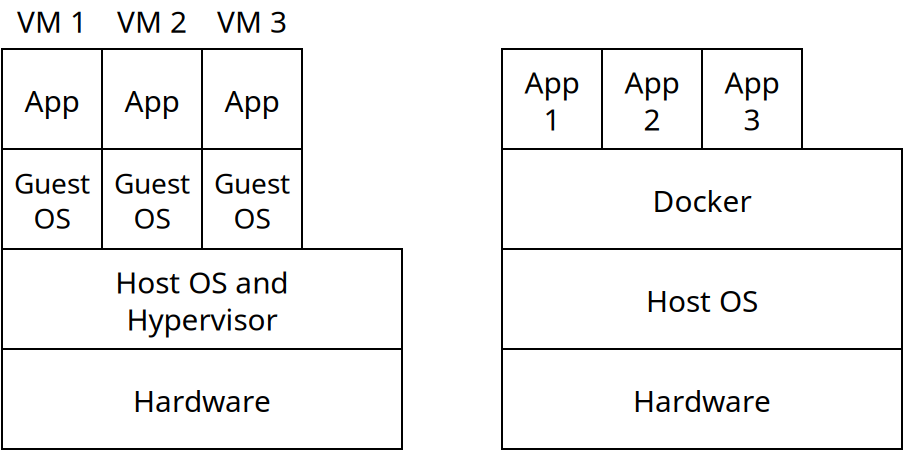
Virtual machines take much longer to start up since the guest OS needs to boot which can take a few minutes. They also take much more space to store, on the order of gigabytes. In contrast launching a container involves launching an isolated process, which is much faster, and takes much less space to store, on the order of megabytes.
It's not feasible to run more than a handful to a dozen virtual machines on one physical machine, while one can run many more containers simultaneously.
On the other hand, the benefits of virtualization include:
- More complete isolation. A bug in containerization could allow access to the host system. There have been a handful of cases where this has happened. With a VM this is virtually impossible.
- Containers must run the same operating system as the host. Nearly all containers are built to run under Linux, so this means the applications are Linux applications. Virtual machine software can run any guest OS (including legacy and niche operating systems).
- Virtual machines are conceptually simpler, especially when running multiple processes. If your application does not need to be deployed on a large scale, doing so is easier with virtualization.
Docker
Docker is the most widely used containerization software. It consists of the docker
executable that takes commands which allow the user to interact with containers, and the dockerd
daemon which implements container operations. The docker command calls into the daemon to make changes.
There are a few important terms with Docker:
- Containers are the isolated processes which are actually running at any time
- Images are snapshots of data and software that could be run as a container. Essentially an image is a container that's not actively running, but just saved on disk.
- A Registry is an online library of Docker images. Docker Hub is a public repository containing image files for many open source applications. One could also make a private registry inside of an organization for storing that organization's images.
The following image shows an example of using Docker:
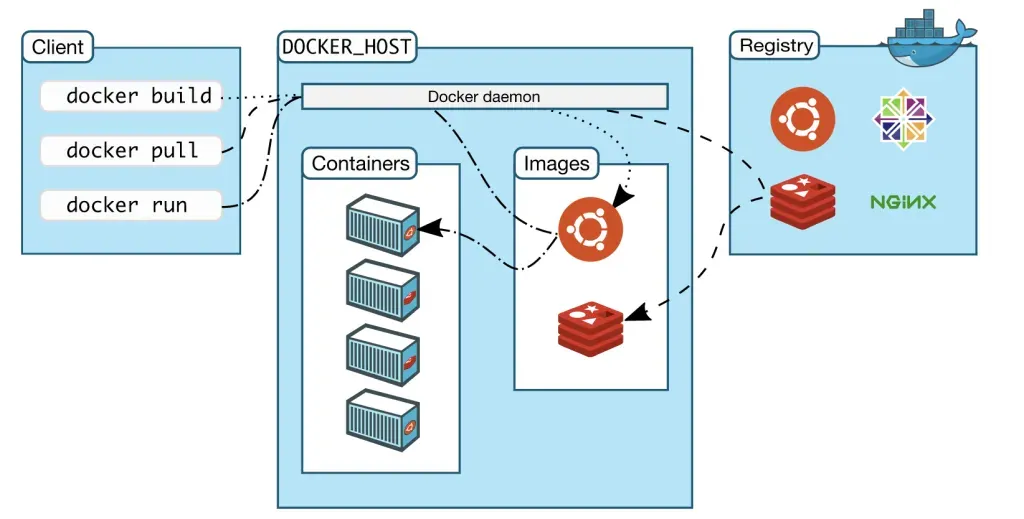
Image credit: Docker
Here, we run some docker commands which call into the Docker daemon. That interacts with the containers and images we have stored on our machine, and potentially downloads images from a repository.
Docker containers run as Linux processes. If Docker is running on Linux, it uses the host operating system kernel which is shared with all container processes. On Windows and Mac, Docker installs a Linux VM which is used for all containers (WSL 2 on Windows and LinuxKit on Mac). For that reason, there's a little more overhead on non-Linux systems.
Docker Commands
| Command | Meaning |
|---|---|
| docker images | Shows local image files |
| docker info | Displays summary information |
| docker ps | Lists running container processes |
| docker pull | Downloads images from a registry |
| docker push | Uploads changes in an image to a registry |
| docker rm | Deletes containers |
| docker rmi | Deletes images |
| docker run | Launches an image into a container |
| docker start | Resumes a stopped container |
| docker stop | Stops a running container |
| docker top | Shows process status and resource usage |
| docker version | Shows docker version number |
Overlay File System
Docker does a very clever thing to allow for containers to share files as well as the OS they run on. It utilizes a Overlay File System which allows for multiple layers to be merged together to present one file system:
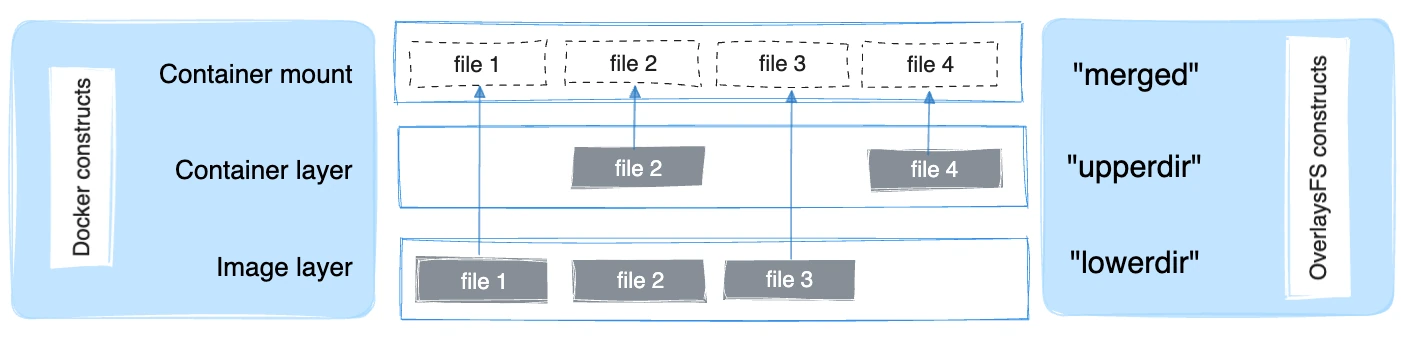
Image credit: Docker
The base image contains a set of files and then the container itself can either add new files, or replace existing one. To see how this is useful, imagine we have an image file for the Apache web server and want to make containers for serving 2 different web sites. Many of the files between these two containers will be the same: the basic OS libraries, Apache binaries, many of the configuration files etc. These will go in the image layer. Some files in each container will overwrite files in the image, such as the Apache configuration, which may differ between the two containers. This can be overwritten, as in "file2" in the image above. Finally, we can add new files altogether such as the actual data being served by each website. This is like "file4" in the image.
The OverlayFS merges these layers together so the container sees one logical file system even though the files are coming from multiple different sources.
Next Steps
Next time we will see:
- How to use volumes to allow containers to save information
- How multiple containers can work together
- Tools which allow for groups of containers to be managed